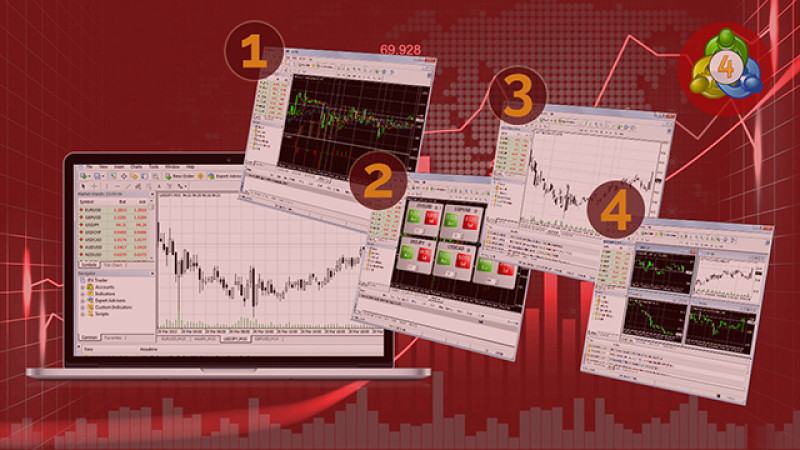
MetaTrader 4 (MT4) WebTrader is a powerful and widely-used trading platform that offers a range of tools for trading and technical analysis. With its flexibility, the platform allows users to enhance their trading experience by adding custom indicators. This feature is particularly useful for traders looking to incorporate specialized tools and strategies into their workflow. If you’re wondering how to install custom indicators on the Metatrader 4 Webtrader, this quick guide will walk you through the steps.
What Are Custom Indicators?
Custom indicators are user-developed tools that enhance the functionality of a trading platform like MT4. Unlike the built-in indicators such as Moving Averages or Bollinger Bands, custom indicators are designed to fit specific trading styles or strategies. They might include custom oscillators, trend indicators, or alert tools that provide a more refined approach to market analysis.
Now, let’s explore how to integrate these into your MT4 WebTrader.
Installing Custom Indicators
Unlike the desktop version of MT4, which allows for straightforward integration of custom indicators, the WebTrader has a more streamlined configuration process. Note that MT4 WebTrader is primarily browser-based, which slightly modifies how custom tools are implemented.
Step 1: Select the Right Indicator File
Before you proceed, ensure you have the appropriate custom indicator file. These files are typically in .mq4 or .ex4 format. You can download these from trusted online sources or create one using the MetaEditor tool available on the MT4 desktop version.
Pro Tip: Always verify the credibility of the source when downloading to avoid unverified or malicious files.
Step 2: Launch the Desktop Version of MT4
Although MT4 WebTrader doesn’t directly support uploading indicators via the browser, custom indicators must initially be installed on the desktop version. Download and install the desktop version of MT4 if you haven’t already.
Once installed, locate the Data Folder by navigating to the platform’s menu. Click on `File` > `Open Data Folder`. Then, go to the “MQL4” directory and open the “Indicators” folder.
Step 3: Add Your Custom Indicator
Copy or move your custom .mq4 or .ex4 indicator file into the Indicators folder. Then, restart the MT4 desktop application.
After the restart, you’ll find your custom indicator listed in the Navigator panel under the “Indicators” section.
Step 4: Test Your Indicators
Perform a quick test by dragging the indicator onto a chart within the desktop MT4. Ensure it functions as you intended.
Step 5: Access on WebTrader
Once the indicator is functional on the desktop version, you can access its analysis on the WebTrader interface. While you won’t directly upload custom indicator files onto WebTrader, the indicators and analyses configured on the desktop version will reflect on WebTrader when connected to the same trading account.
Key Considerations for Using Indicators on MT4 WebTrader
1. Browser Compatibility: Ensure you are using an updated version of a supported browser like Google Chrome or Mozilla Firefox to fully utilize all MT4 WebTrader functionalities.
2. Account Syncing: Make sure your trading account is properly synced between the desktop and WebTrader platforms for seamless access to your custom indicators.
3. Charting Tools: While WebTrader offers limited functionality in terms of installing indicators directly, you can rely on desktop integration to generate accurate chart analyses that can be viewed live on WebTrader.
Final Thoughts
Adding custom indicators allows traders to elevate their trading experience by tailoring tools to their specific needs and strategies. While MT4 WebTrader doesn’t currently allow direct installation of custom indicators through the browser interface, leveraging the desktop version ensures you can enjoy these features seamlessly.
Enhance your technical analysis, refine your strategies, and stay on top of market trends by integrating custom indicators into your MetaTrader 4 WebTrader account today!
0